


Introduction
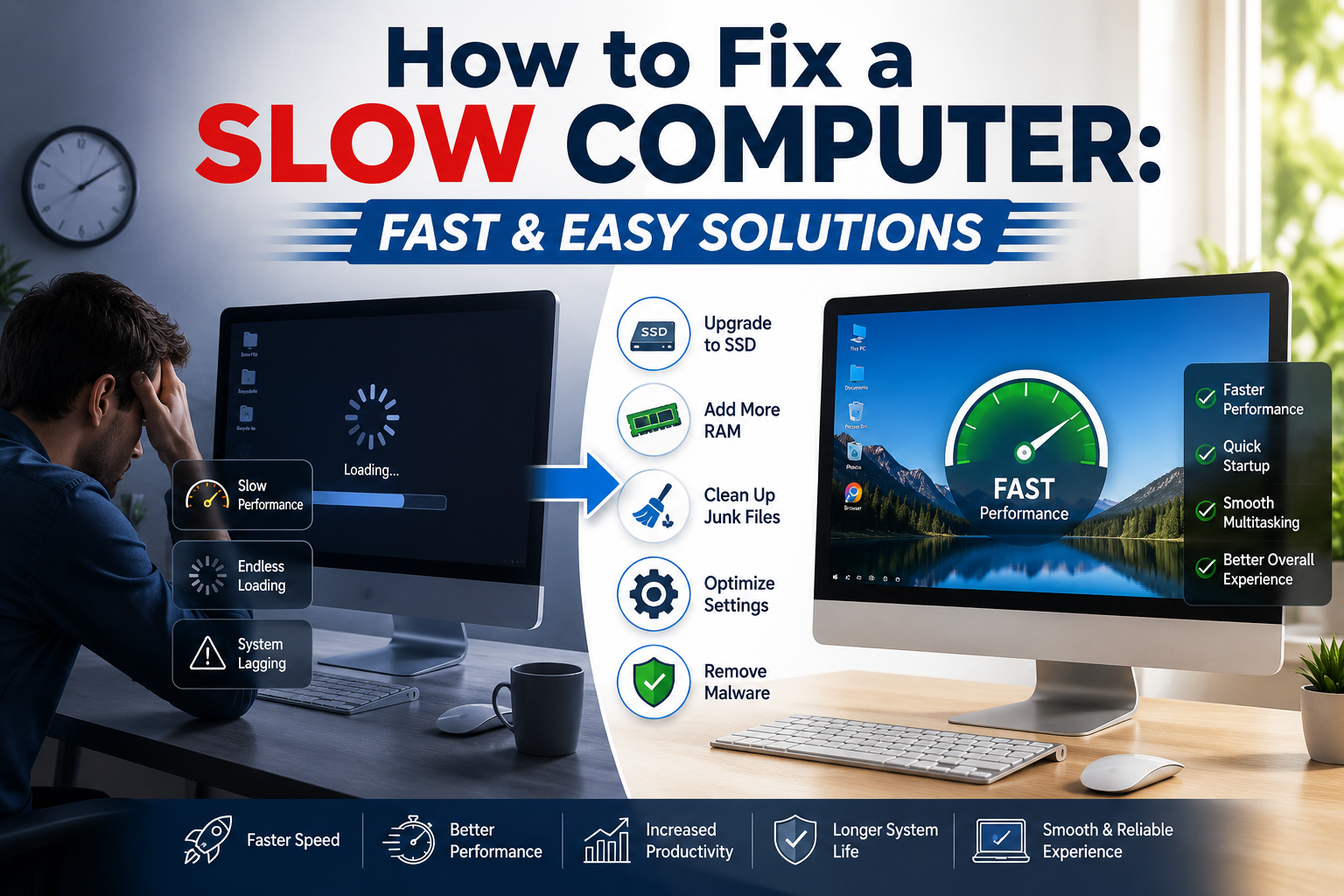
If your computer takes forever to start, programs freeze randomly, or even opening a browser feels slow, you’re not alone. Many people search for how to fix a slow computer when their device starts feeling frustrating to use.
The good news is that a slow computer does not always mean you need a new one. In many cases, a few simple changes can significantly improve speed and performance.
As the saying goes, “A computer is only as fast as the habits of the person using it.” Over time, unnecessary files, background programs, and outdated software can make even powerful machines feel sluggish.
This guide explains how to fix a slow computer using practical steps that anyone can follow.
Common Reasons Why Computers Become Slow
Before learning how to fix a slow computer, it’s important to understand what causes the problem.
Some of the most common reasons include:
- Too many startup programs
- Low storage space
- Malware or viruses
- Outdated operating systems
- Too many browser tabs and extensions
- Insufficient RAM
- Aging hard drives
- Background applications consuming resources
Think of your computer like a crowded highway. The more unnecessary traffic there is, the slower everything moves.
Restart Your Computer First
One of the easiest answers to how to fix a slow computer is simply restarting it.
Many users leave their computers running for days or weeks. This allows temporary files and background processes to accumulate.
A restart can:
- Clear temporary memory
- Stop unnecessary processes
- Refresh system resources
- Improve overall responsiveness
If you haven’t restarted your computer recently, try that before moving to more advanced solutions.
Disable Unnecessary Startup Programs
Many applications automatically launch when your computer starts.
These programs consume memory and processing power before you even begin working.
How to check startup apps:
Windows
- Press Ctrl + Shift + Esc
- Open Task Manager
- Select Startup Apps
- Disable unnecessary programs
Mac
- Open System Settings
- Go to Login Items
- Remove unwanted startup applications
Reducing startup programs is one of the fastest methods for how to fix a slow computer.
Free Up Storage Space
When storage becomes nearly full, system performance often suffers.
A computer needs free space to manage temporary files and system operations efficiently.
Remove unnecessary items such as:
- Old downloads
- Duplicate files
- Unused applications
- Large videos you no longer need
- Temporary system files
A good rule is to keep at least 15–20% of your storage drive free.
As many technicians say, “A cluttered drive often creates a cluttered experience.”
Delete Temporary Files
Temporary files build up every day while browsing websites, installing programs, and using applications.
Over time, thousands of these files can accumulate.
Windows users can:
- Open Disk Cleanup
- Select the system drive
- Remove temporary files
Mac users can:
- Clear cache files
- Empty the Trash
- Use storage management tools
This simple maintenance task is often overlooked when people search for how to fix a slow computer.
Scan for Malware and Viruses
Malware can silently consume system resources and dramatically reduce performance.
Some malicious programs run continuously in the background without obvious signs.
Warning signs include:
- Frequent pop-ups
- Browser redirects
- Slow internet performance
- Unknown applications appearing
Use a trusted antivirus program and perform a complete system scan.
Removing harmful software can instantly improve speed and security.
Update Your Operating System
Software updates are not just about new features.
They often include:
- Performance improvements
- Security fixes
- Bug corrections
- Stability enhancements
Whether you use Windows or macOS, installing the latest updates is a key step in how to fix a slow computer.
Many performance issues disappear after a system update.
Close Background Applications
You may only see a few open programs, but dozens of applications could be running in the background.
These hidden processes consume:
- CPU power
- RAM
- Storage resources
Open Task Manager on Windows or Activity Monitor on Mac to identify resource-heavy programs.
Close applications you don’t need.
This is especially helpful on older computers with limited memory.
Upgrade Your RAM
If your computer struggles when multiple applications are open, insufficient RAM could be the problem.
RAM helps your system handle several tasks simultaneously.
Signs you need more RAM:
- Slow multitasking
- Frequent freezing
- Browser lag with many tabs
- Delays when switching between applications
Upgrading from 4GB to 8GB or from 8GB to 16GB often provides noticeable improvements.
For many users researching how to fix a slow computer, adding RAM delivers one of the biggest performance boosts.
Replace an Old Hard Drive with an SSD
If your computer still uses a traditional hard disk drive (HDD), upgrading to a solid-state drive (SSD) can transform performance.
SSD benefits:
- Faster startup times
- Quicker application launches
- Improved file transfers
- Better overall responsiveness
Imagine replacing a bicycle with a motorcycle. That’s often how dramatic an SSD upgrade feels.
Many experts consider this the single most effective answer to how to fix a slow computer.
Reduce Browser Extensions
Browser extensions can be useful, but too many can slow everything down.
Each extension consumes memory and processing power.
Review and remove:
- Unused extensions
- Duplicate tools
- Suspicious add-ons
- Old productivity plugins
A cleaner browser usually results in faster browsing and better stability.
Clear Browser Cache
Your browser stores temporary website data to load pages faster.
However, an oversized cache can sometimes cause slowdowns.
Clear:
- Cached images
- Cookies
- Browsing history
- Temporary website files
Most browsers provide these options in the privacy or settings section.
This small step can make a noticeable difference, especially if web browsing feels sluggish.
Check for Overheating
Heat is one of the most overlooked reasons behind poor computer performance.
When components become too hot, the system automatically slows down to prevent damage.
Common causes include:
- Dust buildup
- Blocked air vents
- Faulty cooling fans
- Poor airflow
Clean the vents and ensure the computer has enough space for proper ventilation.
A cooler system is usually a faster system.
Uninstall Programs You No Longer Use
Many computers accumulate software that is rarely used.
These applications may:
- Consume storage
- Run background services
- Install automatic updaters
Review your installed programs and remove anything unnecessary.
This creates more space and reduces resource usage.
Optimize Power Settings
Some devices use power-saving settings that limit performance.
Windows users can:
- Open Power Options
- Select High Performance or Balanced mode
Laptop users should:
- Plug in the charger when performing demanding tasks
- Adjust battery settings for better performance
This simple adjustment can improve speed without spending any money.
Organize Desktop Files
A crowded desktop may seem harmless, but hundreds of icons can affect performance.
Move large files into organized folders.
Keep only essential shortcuts visible.
A cleaner desktop often results in a smoother user experience.
Defragment Traditional Hard Drives
If your computer uses an HDD instead of an SSD, defragmentation can help.
Over time, files become fragmented across the drive.
Defragmentation reorganizes data for more efficient access.
Important:
- Defragment HDDs
- Do not manually defragment SSDs
This maintenance step remains useful for older computers.
Reset or Reinstall the Operating System
If you’ve tried everything and performance is still poor, a fresh installation may help.
Reinstalling removes:
- Corrupted files
- Software conflicts
- Hidden system issues
- Unnecessary clutter
Always back up important files before proceeding.
Many users are surprised by how much faster their system feels after a clean installation.
When It Might Be Time for a New Computer
Sometimes hardware limitations are simply too significant.
Consider replacing your computer if:
- It is more than 8–10 years old
- Modern applications barely run
- Hardware upgrades are impossible
- Repair costs exceed replacement value
Technology evolves quickly, and older devices eventually reach their practical limits.
Still, trying the steps in this guide before buying a new machine is usually worthwhile.
Quick Checklist: How to Fix a Slow Computer
If you want the fastest route to improvement, follow this checklist:
- Restart your computer
- Remove startup programs
- Free up storage space
- Delete temporary files
- Scan for malware
- Update your operating system
- Close background apps
- Upgrade RAM if needed
- Switch from HDD to SSD
- Reduce browser extensions
- Clear browser cache
- Clean dust and improve cooling
- Uninstall unused software
- Optimize power settings
- Reinstall the operating system if necessary
Following these steps covers nearly every major solution for how to fix a slow computer.
Conclusion
Learning how to fix a slow computer does not require advanced technical knowledge. Most performance problems come from accumulated clutter, outdated software, unnecessary background processes, or aging hardware.
Start with simple fixes such as restarting your system, clearing storage, and removing startup programs. If performance is still poor, consider upgrading RAM or installing an SSD.
Remember the simple truth: “Regular maintenance is cheaper and easier than replacing a computer.” By taking care of your device consistently, you can keep it running smoothly for years and avoid many common frustrations.