


Introduction
If your mouse opens files, folders, or links with a single click when you intended to click only once, you’re dealing with a frustrating issue known as mouse double-clicking. Many users search for how to fix mouse double clicking because this problem can make everyday computer tasks difficult and annoying.
Whether you’re working, gaming, browsing the web, or editing documents, a mouse that double-clicks unexpectedly can slow you down. The good news is that there are several proven solutions. This guide explains how to fix mouse double clicking step by step in a simple and practical way.
As the saying goes, “Small hardware problems can create big productivity headaches.” Fortunately, most mouse double-clicking issues are easy to diagnose and fix.
What Causes Mouse Double Clicking?
Before learning how to fix mouse double clicking, it helps to understand why it happens.
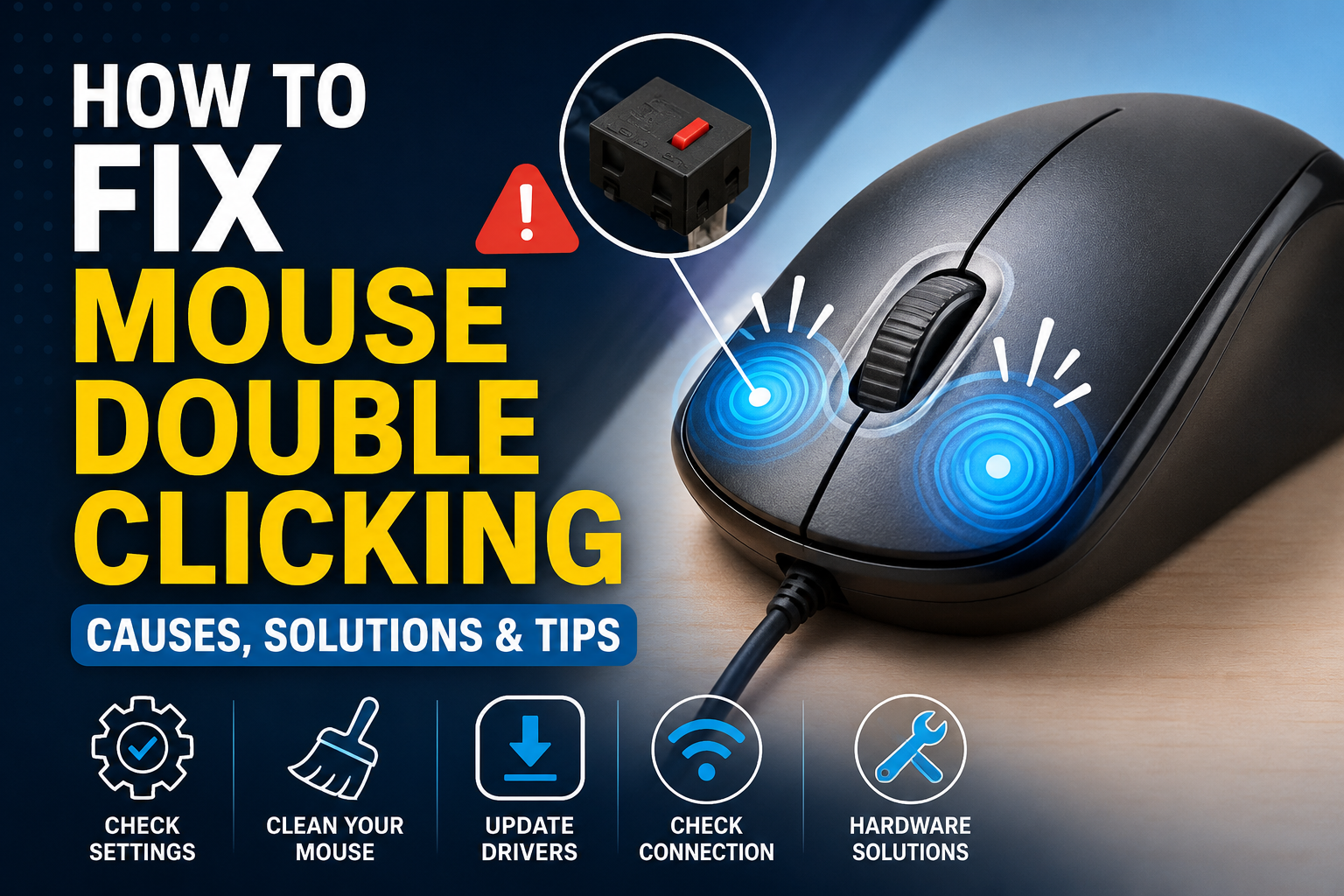
In many cases, the problem is caused by worn-out mouse switches. Every mouse click relies on a small mechanical switch inside the device. After thousands or even millions of clicks, these switches can begin malfunctioning.
Other common causes include:
- Incorrect mouse settings
- Outdated drivers
- Dust and dirt inside the mouse
- Software conflicts
- Wireless signal issues
- Hardware wear and tear
Identifying the cause makes it much easier to apply the correct solution.
Check Your Mouse Double-Click Speed Settings
One of the first steps in how to fix mouse double clicking is checking your system settings.
Sometimes the double-click speed is set too low, causing the computer to register unintended double clicks.
On Windows:
- Open Control Panel.
- Select Mouse.
- Find the Double-click Speed slider.
- Move it toward the middle position.
- Test the folder icon provided in the settings window.
If the speed is too sensitive, adjusting it can solve the issue immediately.
On macOS:
- Open System Settings.
- Click Accessibility.
- Select Pointer Control.
- Adjust the double-click speed.
Many users find that a simple settings adjustment eliminates the problem completely.
Clean Your Mouse Thoroughly
Dust and debris often cause clicking issues.
If you’re researching how to fix mouse double clicking, cleaning the mouse should always be near the top of your troubleshooting list.
Over time, dirt can collect around the buttons and interfere with the switch mechanism.
Cleaning Tips
- Disconnect the mouse.
- Use compressed air around the buttons.
- Clean gaps with a soft brush.
- Wipe the exterior using a microfiber cloth.
- Avoid excessive moisture.
Think of it like maintaining a car. Even the best equipment performs poorly when dirt builds up inside important components.
Update or Reinstall Mouse Drivers
Outdated drivers can sometimes create clicking problems.
Another effective method for how to fix mouse double clicking is updating your mouse drivers.
Update Drivers in Windows
- Press Windows + X.
- Open Device Manager.
- Expand “Mice and other pointing devices.”
- Right-click your mouse.
- Select Update Driver.
If updating doesn’t help, uninstall the device and restart your computer. Windows will automatically reinstall the driver.
Driver-related problems are less common than hardware issues, but they’re still worth checking.
Test the Mouse on Another Computer
A simple test can save a lot of time.
Connect the mouse to a different computer and observe its behavior.
Results You Might See
- If double-clicking continues, the mouse hardware is likely faulty.
- If the issue disappears, the problem may be related to your operating system or software settings.
This is one of the quickest ways to narrow down the root cause.
Disable Click Assistance Software
Some third-party applications modify mouse behavior.
Programs designed for gaming, accessibility, productivity, or macro creation can interfere with normal clicking functions.
If you’re exploring how to fix mouse double clicking, temporarily disable these applications and test the mouse again.
Common examples include:
- Gaming mouse software
- Macro tools
- Auto-clicker programs
- Accessibility enhancements
Sometimes software conflicts are the hidden culprit.
Check Wireless Connection Issues
Wireless mice can occasionally produce strange behavior due to signal interruptions.
If you’re using a wireless mouse, try:
- Replacing the batteries
- Moving the receiver closer
- Removing nearby wireless interference
- Using a different USB port
Weak signals can sometimes create input errors that feel similar to double-clicking.
A stable connection often restores normal operation.
Turn Off Click Lock
Windows includes a feature called Click Lock.
When enabled accidentally, it may cause unusual mouse behavior.
How to Disable Click Lock
- Open Mouse Settings.
- Go to Buttons.
- Locate Click Lock.
- Ensure it is unchecked.
Although Click Lock isn’t always responsible, it’s worth verifying during the troubleshooting process.
Perform a Hardware Test
Several free online mouse testing tools allow you to see how your clicks are being registered.
A mouse testing website can reveal whether a single click is being detected as multiple clicks.
This provides valuable evidence when determining how to fix mouse double clicking.
Hardware tests help separate software issues from physical defects.
Fix Worn-Out Mouse Switches
If none of the previous solutions work, the internal switch may be failing.
This is one of the most common reasons people search for how to fix mouse double clicking.
Signs of a Worn-Out Switch
- Random double clicks
- Missed clicks
- Inconsistent clicking
- Clicks that feel different than before
Many gaming mice experience this issue after heavy use.
You have several options:
- Replace the switch
- Repair the mouse
- Use a warranty claim
- Purchase a new mouse
For users comfortable with electronics, replacing the switch can extend the life of the mouse significantly.
Use Manufacturer Software Updates
Many modern mice include firmware updates.
Manufacturers occasionally release updates that improve performance and fix bugs.
Popular brands offering firmware tools include:
- Logitech
- Razer
- Corsair
- SteelSeries
- HyperX
Visit the manufacturer’s support page and check for available updates.
A firmware update can sometimes resolve unexpected clicking behavior.
Temporary Workarounds
While you’re troubleshooting, several temporary fixes may reduce frustration.
Helpful Workarounds
- Use a spare mouse.
- Lower click frequency.
- Adjust double-click speed settings.
- Switch USB ports.
- Use a trackpad if available.
These solutions won’t permanently fix the issue but can help you continue working.
When Should You Replace the Mouse?
Sometimes replacement is the smartest option.
If your mouse is several years old and continues malfunctioning after cleaning, driver updates, and troubleshooting, replacement may be more cost-effective than repair.
A reliable mouse is essential for productivity, gaming, and everyday computing.
As many technicians say, “Time spent fighting failing hardware is often more expensive than replacing it.”
If repair costs approach the price of a new device, upgrading is usually the better choice.
Best Practices to Prevent Future Double-Click Problems
Once you’ve learned how to fix mouse double clicking, it’s also important to prevent the issue from returning.
Prevention Tips
- Keep the mouse clean.
- Avoid excessive force when clicking.
- Store it in a dust-free environment.
- Use quality mouse pads.
- Install firmware updates regularly.
- Protect wireless receivers from damage.
Small maintenance habits can dramatically extend a mouse’s lifespan.
Frequently Asked Questions
Can software cause mouse double clicking?
Yes. Driver issues, software conflicts, and incorrect settings can occasionally create double-clicking behavior.
Is mouse double clicking always a hardware problem?
No. Although worn switches are common, settings and software can also cause the issue.
Can cleaning fix mouse double clicking?
Yes. If dust or debris is interfering with the button mechanism, cleaning may solve the problem.
Should I repair or replace my mouse?
If the mouse is expensive or still under warranty, repair may be worthwhile. Otherwise, replacement is often the simplest solution.
Conclusion
Learning how to fix mouse double clicking doesn’t have to be complicated. Start with simple solutions such as adjusting settings, cleaning the mouse, updating drivers, and testing on another computer. These steps resolve many cases without requiring new hardware.
If the issue persists, worn-out internal switches are likely responsible. In that situation, repairing or replacing the mouse is usually the most effective solution. By following the methods in this guide, you can restore smooth, reliable clicking and get back to using your computer without frustration.