


Introduction
Watching a blurry or blocky video can be frustrating, especially when the content is important. Whether it is a personal recording, a downloaded movie, a social media clip, or a business presentation, pixelation can make a video look unprofessional and difficult to watch.
If you are wondering how to fix pixelated video, the good news is that there are several practical solutions available. In many cases, you can improve video quality significantly without needing advanced technical skills.
As the saying goes, “A great story deserves a clear picture.” That’s why understanding how to fix pixelated video can help you recover valuable footage and enjoy a better viewing experience.
What Is Video Pixelation?
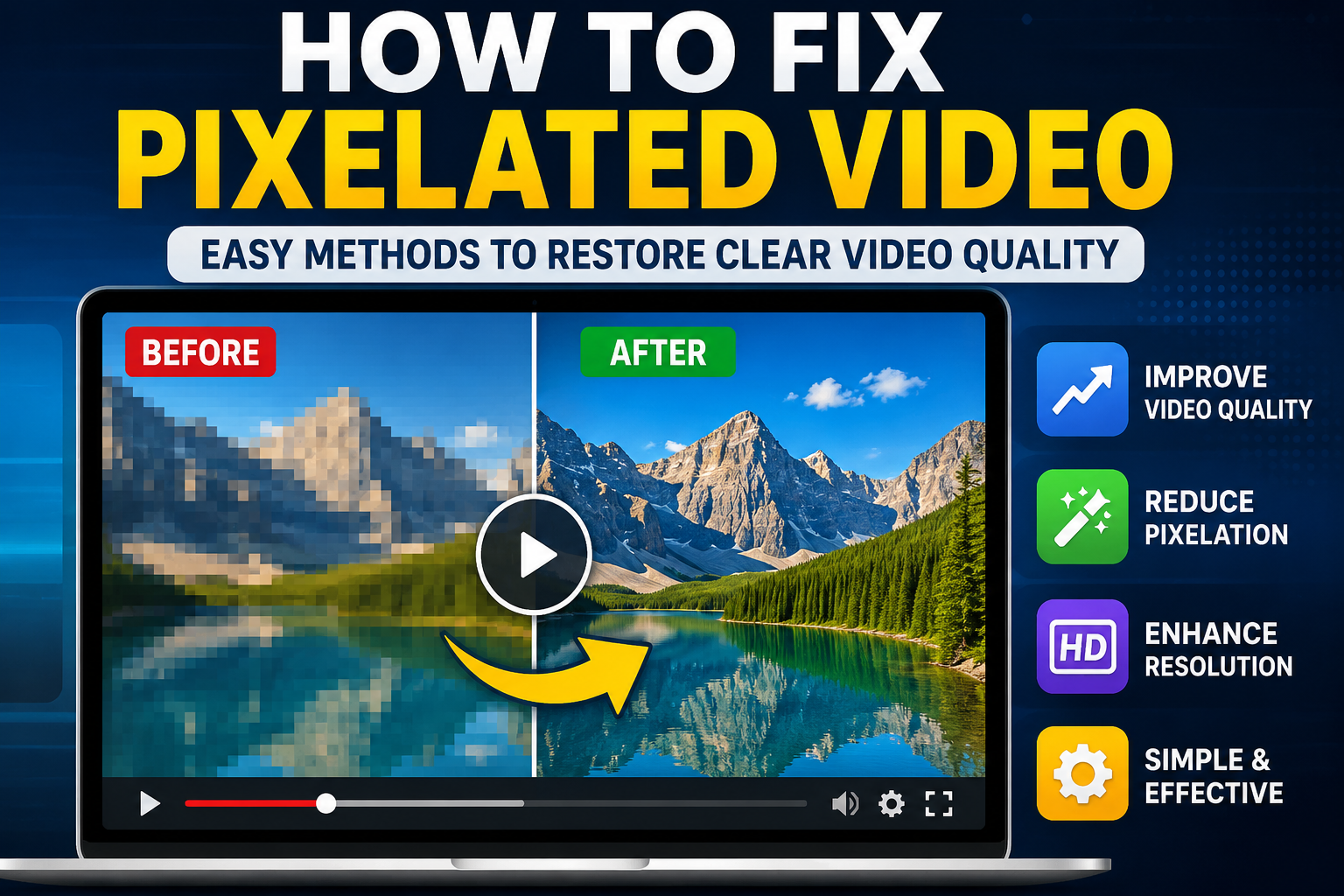
Video pixelation happens when a video loses visual detail and appears blocky, blurry, or distorted. Instead of smooth images, you see large square-shaped pixels.
Common signs of pixelation include:
- Blurry faces and objects
- Blocky sections in the video
- Loss of sharp details
- Distorted movement
- Poor image clarity
Pixelation can affect both old and newly recorded videos.
Why Videos Become Pixelated
Before learning how to fix pixelated video, it helps to understand the cause of the problem.
Low Video Resolution
A low-resolution video contains fewer pixels. When viewed on larger screens, those pixels become visible and create a blurry appearance.
For example, a 360p video stretched onto a 4K television will often look pixelated.
Excessive Compression
Videos are commonly compressed to reduce file size. However, too much compression removes visual information.
This often happens when uploading videos to websites or messaging apps that automatically shrink files.
Poor Internet Connection
Streaming platforms adjust video quality based on internet speed. A slow connection may force videos to play at lower resolutions.
Many people think a video is damaged when it is actually streaming in reduced quality.
Recording With Low-Quality Settings
If a video is recorded using low camera settings, the footage may already contain pixelation before editing or uploading.
File Corruption
Damaged video files can produce visual artifacts, blocky images, and playback issues.
Corruption may occur during transfer, storage, downloading, or editing.
How to Identify the Cause of Pixelation
The first step in how to fix pixelated video is finding the root cause.
Ask yourself:
- Does the video look pixelated only online?
- Is the original file blurry too?
- Was the video downloaded from the internet?
- Did the issue appear after editing?
- Is the file damaged or incomplete?
Knowing the answer helps you choose the correct solution.
How to Fix Pixelated Video by Increasing Playback Quality
Sometimes the video itself is fine.
Streaming platforms often lower quality automatically to prevent buffering.
Check Video Settings
Most platforms allow manual quality selection.
Look for options such as:
- 720p
- 1080p
- 1440p
- 4K
Switching from 360p to 1080p can instantly improve clarity.
Improve Internet Speed
A faster connection allows platforms to stream higher-quality versions.
Try:
- Restarting your router
- Using Wi-Fi instead of mobile data
- Moving closer to the router
- Limiting other network activity
This simple step often solves pixelation issues.
Use Video Repair Software
When file corruption causes pixelation, repair software can help.
Many repair tools analyze damaged video structures and rebuild missing information.
Features often include:
- Video reconstruction
- Header repair
- Playback restoration
- Corruption recovery
These tools are especially useful for videos recorded on smartphones, drones, action cameras, and digital cameras.
If the file suddenly became pixelated after a crash or transfer error, repair software should be one of the first solutions you try.
Enhance Video Resolution
One of the most effective methods for how to fix pixelated video is resolution enhancement.
Upscaling Technology
Upscaling increases video dimensions and fills missing details using advanced algorithms.
For example:
- 480p → 720p
- 720p → 1080p
- 1080p → 4K
While upscaling cannot create perfect detail from nothing, it can make videos appear significantly sharper.
Use Professional Video Enhancers
Modern video enhancement tools can:
- Reduce blur
- Sharpen edges
- Improve textures
- Increase clarity
- Minimize pixel blocks
Many creators use these tools when restoring old footage.
Adjust Sharpness Settings
Sharpness enhancement can improve visual detail.
When used correctly, sharpening helps define edges and reduce the appearance of blur.
However, excessive sharpening can create unnatural artifacts.
For best results:
- Increase sharpness gradually
- Preview changes frequently
- Avoid maximum settings
A balanced adjustment often provides the most natural outcome.
Reduce Video Noise
Noise and pixelation are often connected.
Digital noise appears as tiny moving dots or grain throughout a video.
Reducing noise can make footage look cleaner and more professional.
Common Causes of Noise
- Low-light recording
- High ISO camera settings
- Older cameras
- Poor sensor performance
Noise reduction tools smooth unwanted artifacts while preserving important details.
Re-Export the Video Correctly
Improper export settings can ruin video quality.
Many users accidentally create pixelated videos during the export process.
Recommended Export Practices
- Use high bitrate settings
- Export in original resolution
- Choose quality-focused presets
- Avoid multiple compression cycles
- Use modern codecs when possible
Think of video quality like photocopying a document. Every extra copy loses a little detail. Repeated exporting works similarly.
Fix Pixelated Videos on Smartphones
Many people search for how to fix pixelated video because their phone videos appear blurry.
Check Original File Quality
Sometimes messaging apps reduce video quality automatically.
Compare:
- Original gallery file
- Shared version
- Downloaded version
The original file is often much clearer.
Use Video Enhancement Apps
Many mobile apps offer:
- Resolution improvement
- Sharpening tools
- Noise reduction
- Video restoration
These tools can improve social media clips and personal recordings.
Fix Pixelated Videos on Windows
Windows users have several options.
Update Media Players
Older media players may struggle with modern formats.
Try:
- Updating your player
- Using a different player
- Installing required codecs
Check Graphics Drivers
Outdated graphics drivers sometimes cause playback issues that resemble pixelation.
Updating drivers may improve video rendering quality.
Fix Pixelated Videos on Mac
Mac users can also improve video quality through simple troubleshooting.
Verify Display Settings
Incorrect display scaling can affect video appearance.
Check:
- Screen resolution
- Display scaling
- Video playback settings
Use Video Editing Software
Many Mac-compatible editors include enhancement features designed to improve blurry footage and reduce pixelation.
How to Prevent Pixelated Videos in the Future
Learning prevention is just as important as learning how to fix pixelated video.
Record at Higher Resolution
Whenever possible, record in:
- 1080p
- 1440p
- 4K
Higher resolution provides more visual detail.
Use Good Lighting
Good lighting reduces noise and improves image quality.
Even an inexpensive camera performs better in well-lit conditions.
Avoid Excessive Compression
Upload videos at recommended settings.
Over-compression is one of the biggest causes of pixelation.
Keep Original Files
Always save the original version before editing.
The original file serves as a backup if quality decreases during processing.
Can AI-Based Enhancement Help?
Modern enhancement technologies can significantly improve pixelated videos.
These systems analyze frames and estimate missing visual information.
Benefits include:
- Improved sharpness
- Better facial detail
- Reduced blur
- Enhanced textures
While results vary depending on the original footage, many users see noticeable improvements.
As many video restoration experts say, “The better the source, the better the recovery.” Enhancement tools work best when the original file still contains usable detail.
Common Mistakes When Trying to Fix Pixelated Videos
Avoid these frequent errors:
Over-Sharpening
Too much sharpening creates halos and unnatural edges.
Repeated Re-Compression
Every export may reduce quality further.
Using Extremely Low Bitrates
Low bitrates save space but sacrifice visual detail.
Ignoring Source Quality
No software can completely restore details that were never recorded.
Understanding realistic expectations helps achieve better results.
Best Situations for Video Restoration
The methods discussed in how to fix pixelated video work especially well for:
- Family videos
- Wedding footage
- Travel recordings
- Educational content
- Business presentations
- Social media clips
- Screen recordings
Even moderate improvements can make videos far more enjoyable to watch.
Final Thoughts
If you are searching for how to fix pixelated video, start by identifying the cause of the problem. Pixelation can result from low resolution, excessive compression, poor internet connections, file corruption, or incorrect export settings.
The most effective solutions include increasing playback quality, repairing damaged files, enhancing resolution, reducing noise, adjusting sharpness, and exporting videos correctly. In many cases, combining several methods produces the best results.
Remember, video quality is easiest to preserve at the source. Recording in higher resolution, using good lighting, and avoiding unnecessary compression can prevent many pixelation problems before they happen.
A clear video not only looks better but also communicates more effectively, making every frame count.