


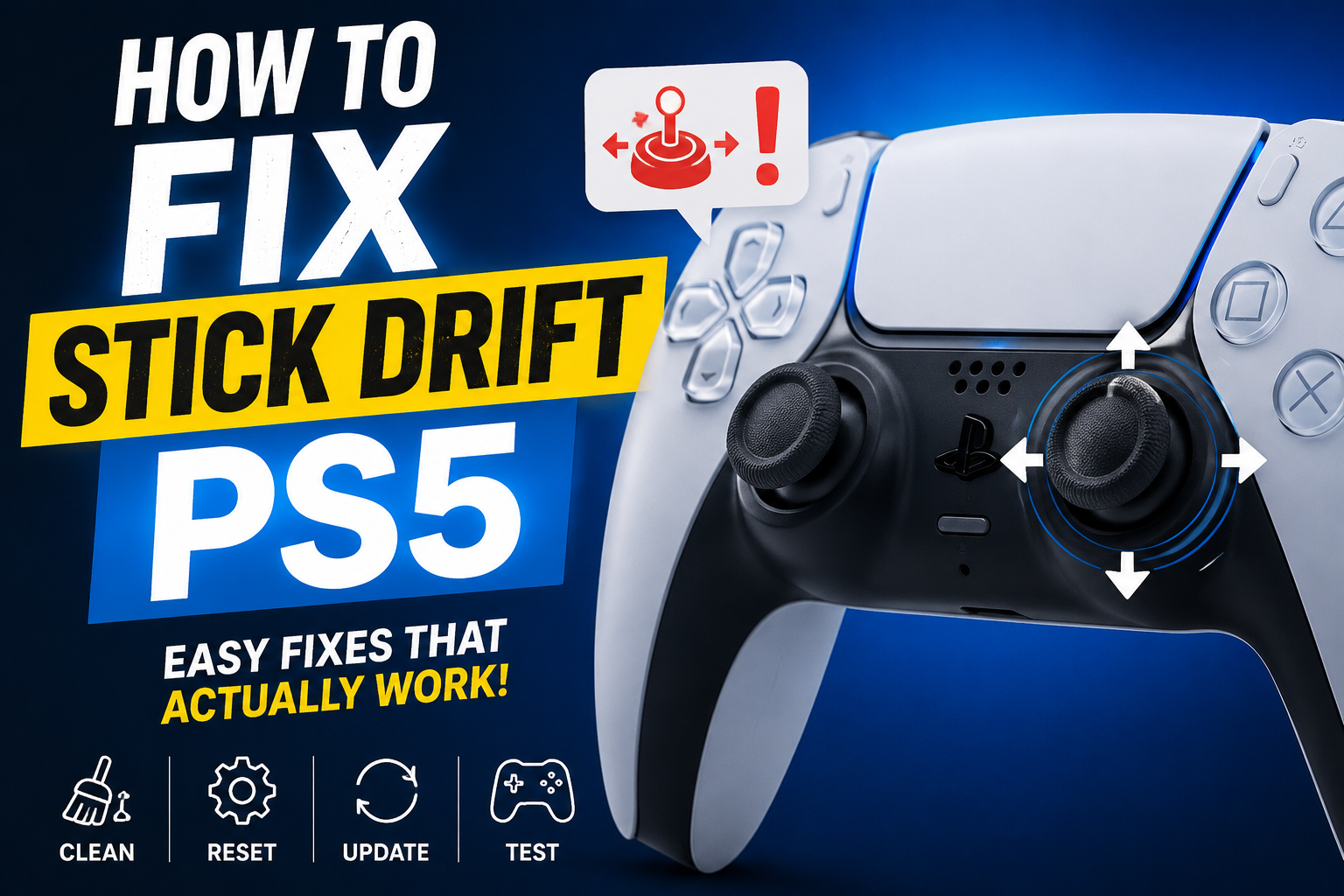
Trying to learn how to fix stick drift PS5 controller problems? You are probably dealing with a character that walks without permission, a camera that slowly turns by itself, or menus that keep moving even when you are not touching the analog stick.
The good news is that stick drift does not always mean your DualSense controller is finished. Dirt, a temporary software issue, incorrect game settings, or worn internal parts can all cause similar symptoms.
Start with the easiest fixes before opening or replacing anything. As the saying goes, “The best repair is the one that solves the problem without creating a second one.”
What Is PS5 Stick Drift?
Stick drift happens when the PS5 receives movement input from an analog stick even though your thumb is not moving it. Your character may walk, aim, turn, or scroll without your control.
For example, imagine putting your controller on a table while playing a game. If the camera slowly moves to the left on its own, the right analog stick may be drifting.
The problem can affect either stick. Left stick drift often causes unwanted character movement, while right stick drift usually affects aiming or camera control.
Before learning how to fix stick drift PS5, make sure the movement is truly coming from the controller. Some games include automatic camera movement, motion controls, or unusually sensitive settings that can look like drift.
Common Signs Your PS5 Controller Has Stick Drift
The easiest sign is movement that continues after you remove your thumb from the analog stick. The problem may be constant, or it may appear only in certain directions.
You may notice:
- Your character walks without input
- The camera slowly rotates
- Aiming becomes difficult
- Menus move by themselves
- A vehicle turns when the stick is centered
- The problem becomes worse over time
Mild drift may appear only in games with very sensitive controls. More serious drift can make menus difficult to use and affect almost every game.
A useful test is simple: place the controller on a flat surface and avoid touching either stick. Watch the screen carefully. Consistent movement while the controller is untouched is a strong sign of a stick input problem.
Why Does PS5 Stick Drift Happen?
One common cause is dust or debris around the analog stick mechanism. Small particles can enter the space around the stick and interfere with smooth movement.
Another possible cause is wear inside the controller. Analog sticks contain moving components, and repeated use can eventually affect how accurately the stick returns to its center position.
Software or connection problems can sometimes create symptoms that feel similar to drift. That is why updating and resetting the controller should come before more aggressive repair attempts.
Game settings also matter. A very low deadzone can reveal tiny analog movements that would otherwise be ignored. Think of it like an overly sensitive microphone: even a tiny background sound suddenly becomes noticeable.
1. Restart the PS5 and Test the Controller Again
The first step in how to fix stick drift PS5 is also the easiest. Completely restart the console and test the controller again.
Do not immediately assume that the analog stick needs replacement. A temporary communication or software issue can sometimes cause strange controller behavior.
Turn off the PS5, wait briefly, and start it again. Then open the same game and check whether the unwanted movement returns.
Also test another game if possible. If the issue appears in only one title, the problem may be connected to that game’s control settings rather than permanent controller damage.
2. Update the DualSense Controller Software
Keeping the controller software current is an important troubleshooting step. PlayStation provides a manual controller update option through Settings > Accessories > Controller (General) > DualSense Wireless Controller Device Software.
Connect the DualSense controller properly and install any available update. Then restart the game and test both analog sticks.
An update will not repair a physically worn internal component, but it is still worth checking before cleaning, opening, or replacing the controller.
“Always eliminate the simple causes first” is a good rule here. Spending a few minutes checking software is much better than taking apart a controller that never needed to be opened.
3. Reset the DualSense Controller
If updating does not help, reset the controller. PlayStation officially recommends resetting the DualSense when controller problems occur.
Follow these steps:
- Turn off the PS5 console
- Disconnect the controller from its USB cable
- Turn the controller over
- Find the small reset hole near the Sony logo
- Use a pin or similar small tool
- Press and hold the button inside for at least five seconds
After the reset, reconnect the controller to the PS5 using a USB cable and test it again. PlayStation’s official troubleshooting instructions confirm the location and five-second reset process.
This is one of the safest early steps when learning how to fix stick drift PS5 because it does not require opening the controller.
4. Rotate and Move the Analog Stick Fully
Sometimes debris collects around the base of an analog stick. Moving the stick through its full range may help loosen a minor obstruction.
Turn off the controller first. Push the affected stick gently in one direction, then rotate it slowly in complete circles.
Repeat the movement several times in both directions. Do not force the stick or press it aggressively.
You can also click the stick button, such as L3 or R3, a few times while moving the stick around. The goal is gentle movement, not brute force.
5. Clean Around the Analog Stick
Cleaning is one of the most common steps people try when searching for how to fix stick drift PS5 controller issues.
Start by turning off and disconnecting the controller. Use a clean, soft brush or controlled air to remove visible dust from around the base of the affected stick.
Move the stick to one side so you can reach the exposed edge. Work slowly around the entire base while changing the stick position.
Avoid pouring cleaning liquid directly into the controller. More liquid does not mean a better repair, and careless cleaning can create additional problems.
The aim is simple: remove surface debris without forcing dirt deeper into the controller.
6. Test and Adjust the Game Deadzone
A deadzone is a small area around the center of an analog stick where tiny movements are ignored.
Many games allow you to change this setting. If the deadzone is extremely low, even a small amount of unwanted stick movement may affect the game.
Open the controller or aiming settings inside the game and look for options such as:
- Left stick deadzone
- Right stick deadzone
- Inner deadzone
- Minimum input threshold
Increase the setting slightly and test the controller again. Make small changes instead of jumping straight to the highest value.
A slightly larger deadzone can make mild drift unnoticeable. However, this is usually a workaround rather than a physical repair. If the drift keeps getting worse, the controller may still need professional attention.
7. Check Whether the Problem Happens in Every Game
Do not judge the controller based on a single game.
Some games use different sensitivity settings, response curves, motion controls, or deadzone values. A controller may seem perfect in one game and drift badly in another.
Test the controller in:
- A game with slow character movement
- A game with camera controls
- A system menu
- Another title with different control settings
If the unwanted movement appears everywhere, a controller problem becomes more likely.
If it appears only in one game, reset that game’s controller settings or increase its deadzone before attempting a hardware repair.
8. Disconnect Other Input Devices
Other connected accessories can occasionally confuse troubleshooting. A second controller or another input device may be sending movement commands.
Turn off unused controllers and disconnect unnecessary accessories. Then test only the affected DualSense.
This step takes less than a minute and can prevent you from blaming the wrong device.
When troubleshooting how to fix stick drift PS5, test one possible cause at a time. Changing five things together makes it difficult to know which one actually solved the problem.
9. Test the Controller With a USB Connection
Try connecting the controller directly to the PS5 with a suitable USB cable.
The main purpose here is comparison. Check whether the unwanted movement behaves differently when the controller is connected directly.
If the problem appears exactly the same in every situation, the analog stick itself becomes a stronger suspect.
Do not treat the USB test as a guaranteed cure for physical drift. Use it as part of a careful process to understand when and where the issue happens.
What to Do If Cleaning and Resetting Do Not Work
If you have updated, reset, cleaned, and tested the controller but the stick still moves on its own, the issue may be deeper inside the analog stick mechanism.
At this point, repeatedly cleaning the outside may not help. You could spend an hour repeating the same steps and still have the same drifting camera.
Your realistic options are:
- Use a slightly higher in-game deadzone for mild drift
- Check available repair or warranty options
- Have the controller repaired professionally
- Replace the controller if repair is not practical
PlayStation directs users who still have controller issues after troubleshooting toward its hardware repair support process.
The best option depends on the controller’s age, condition, repair cost, and how severe the drift has become.
Should You Open the PS5 Controller?
Opening a controller should not be your first step.
The DualSense contains small parts, cables, clips, and electronic components. A beginner can easily turn a manageable stick problem into a damaged controller.
Opening may be reasonable for someone who has the correct tools and real repair experience. For most people, it makes more sense to complete all external troubleshooting first.
“Knowing when not to take something apart is also a repair skill.” If the controller may still qualify for official service, check those options before attempting an invasive repair.
Can You Fix Severe Stick Drift Permanently?
Sometimes, but the correct solution depends on what is causing the drift.
Dirt-related problems may improve after careful cleaning. Software-related behavior may disappear after an update or reset. Mild drift may also be hidden with a reasonable deadzone adjustment.
However, worn internal components may require actual hardware repair. No amount of restarting will permanently restore a component that is physically damaged.
This is why a good how to fix stick drift PS5 guide should not promise that one trick works for every controller. The symptoms may look identical while the underlying causes are completely different.
The Best Order to Try PS5 Stick Drift Fixes
The order matters because you should start with low-risk steps.
Use this sequence:
- Restart the PS5
- Test a different game
- Check in-game deadzone settings
- Update the DualSense controller software
- Reset the controller
- Rotate and exercise the affected analog stick
- Clean carefully around the stick
- Test with unnecessary accessories disconnected
- Compare the controller in different games
- Consider professional or official repair
This order helps you avoid unnecessary work. There is no reason to open a controller before checking whether one game simply has an overly sensitive deadzone.
Common Mistakes to Avoid
One major mistake is using too much force. Twisting, pulling, or aggressively pressing the analog stick can make the situation worse.
Another mistake is pouring liquid into the controller. Stick drift can be frustrating, but flooding an electronic device is not a safe shortcut.
Avoid these habits:
- Do not force the analog stick
- Do not pour cleaner directly inside
- Do not use random sharp tools around moving parts
- Do not open the controller before checking repair options
- Do not assume every movement problem is physical drift
- Do not repeatedly apply the same failed fix
Also avoid treating social media tricks as guaranteed repairs. A method that worked for one dusty controller may do nothing for another controller with worn internal parts.
How to Reduce the Chance of Stick Drift Returning
You cannot guarantee that an analog stick will last forever, but careful use can reduce unnecessary wear and contamination.
Keep the controller in a clean, dry area when it is not being used. Avoid leaving it uncovered where dust, crumbs, or pet hair can collect around the sticks.
Try not to:
- Eat directly over the controller
- Store it on the floor
- Throw it onto a bed or sofa
- Press the sticks harder than necessary
- Carry it loose with heavy objects
Normal gameplay requires movement and clicking, so there is no need to become overly cautious. The goal is simply to avoid preventable dirt, impact, and rough handling.
Is a Deadzone Adjustment a Real Fix?
Not exactly.
A deadzone adjustment tells the game to ignore a small amount of movement near the center of the analog stick. This can make mild drift disappear during gameplay.
For example, imagine a door that moves slightly in a breeze. A larger deadzone is like deciding to ignore tiny movements of the door. You no longer notice the symptom, but the breeze still exists.
That does not make deadzone adjustment useless. For very mild drift, it can be a practical solution that keeps a controller usable for much longer.
When Is It Time to Replace the Controller?
Replacement makes sense when the drift is severe, repair costs are unreasonable, or the controller has several other problems.
A controller that has stick drift, weak battery life, damaged buttons, and charging problems may not be worth investing heavily in.
On the other hand, replacing an otherwise excellent controller because of a minor temporary software issue would be wasteful.
Complete the full how to fix stick drift PS5 process first. Then make the decision based on what you actually discovered, not on frustration during one bad gaming session.
Frequently Asked Questions
Can PS5 stick drift go away on its own?
Temporary movement caused by debris, game settings, or a software issue may disappear after cleaning, resetting, updating, or adjusting settings.
Physical wear is less likely to permanently disappear by itself. It may seem better for a while and return later.
Does resetting a PS5 controller fix stick drift?
It can help when the problem is related to a temporary controller issue, which is why resetting is worth trying early. PlayStation officially recommends the reset process as part of DualSense troubleshooting.
A reset cannot physically replace or restore a worn internal component.
Can cleaning fix PS5 stick drift?
Cleaning may help when dust or debris around the stick is contributing to the problem.
It is less likely to solve drift caused by internal wear. Start with gentle external cleaning rather than immediately opening the controller.
Why does my PS5 controller move by itself?
Possible causes include stick drift, sensitive deadzone settings, game-specific controls, temporary controller problems, or internal wear.
Test several games and settings before deciding that the controller needs replacement.
Which stick usually drifts?
Either analog stick can drift.
Left stick drift often moves the player character, while right stick drift commonly causes unwanted camera or aiming movement.
Should I buy a new controller immediately?
Usually not before basic troubleshooting.
Try the safest fixes first. A restart, update, reset, game-setting adjustment, or careful cleaning may solve the problem without requiring a new controller.
Final Thoughts
The best way to learn how to fix stick drift PS5 is to work from the easiest solution toward the most serious one.
Start by restarting the console, checking another game, updating the controller, and performing the official reset. Then inspect and gently clean around the analog stick.
For mild drift, a small deadzone increase may make the controller comfortable to use again. For severe or worsening drift, professional or official repair is usually smarter than repeatedly trying temporary tricks.
Most importantly, do not rush. “A careful five-minute test can save you from a completely unnecessary repair.” Diagnose first, fix second, and only replace the controller when simpler solutions have genuinely failed.